 Privasys
Tutorial
Step-by-step walkthrough of the Privasys Developer Platform to deploy a WASM application and a container application from commit to attested MCP tool server.
Two end-to-end tutorials covering both deployment targets on the Privasys Platform. Every screenshot was captured from the live platform using Playwright.
Part 1: Deploy a WASM application
This tutorial deploys the wasm-app-example repository, a Rust module compiled to WebAssembly that exposes nine functions including get-random, hello (with authentication variants), kv-store, and compute-hash.
Step 1. Empty dashboard
Sign in at developer.privasys.org with your GitHub account. You start with the main page.
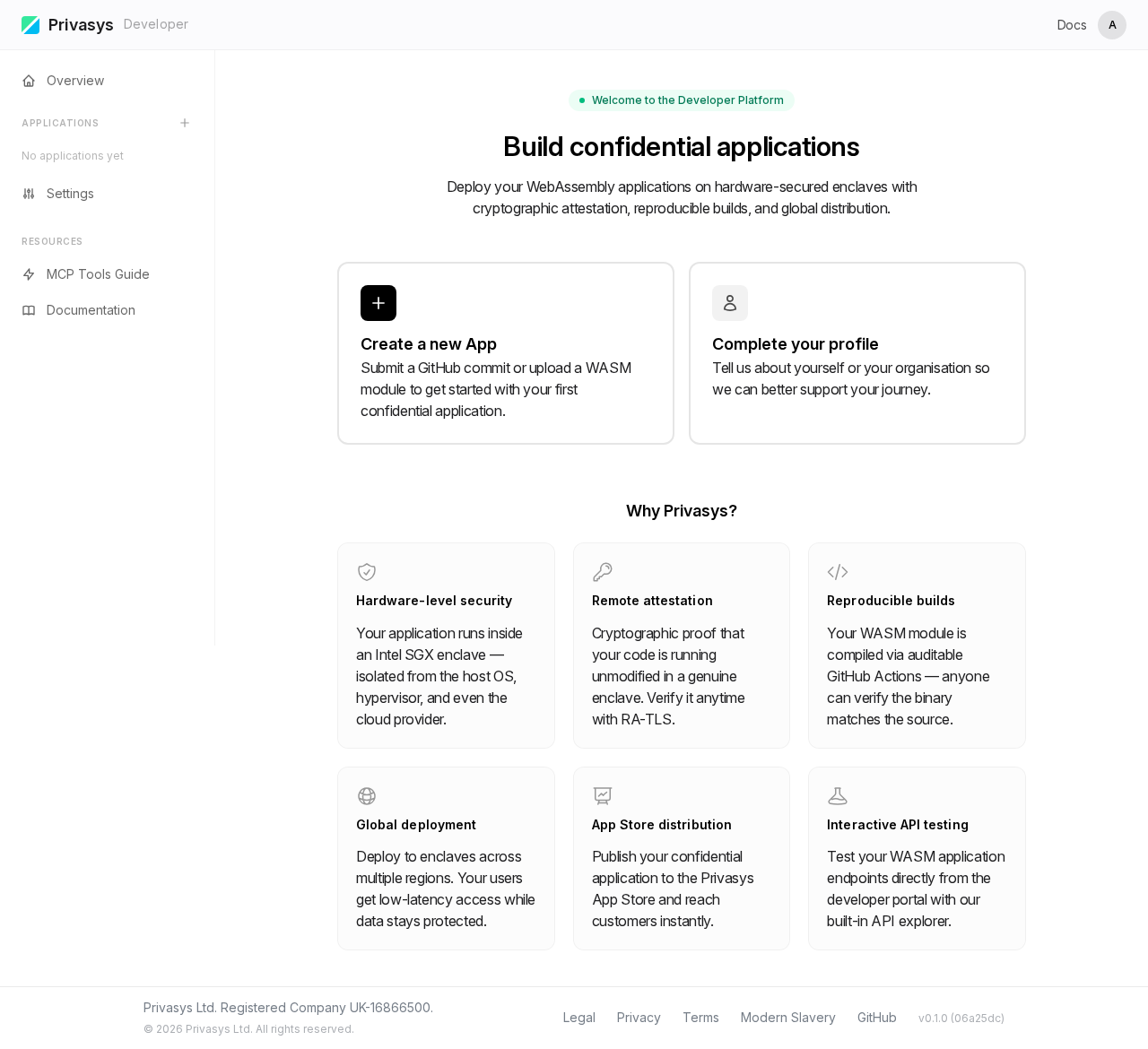
Click Create a new App to begin.
Step 2. New application form
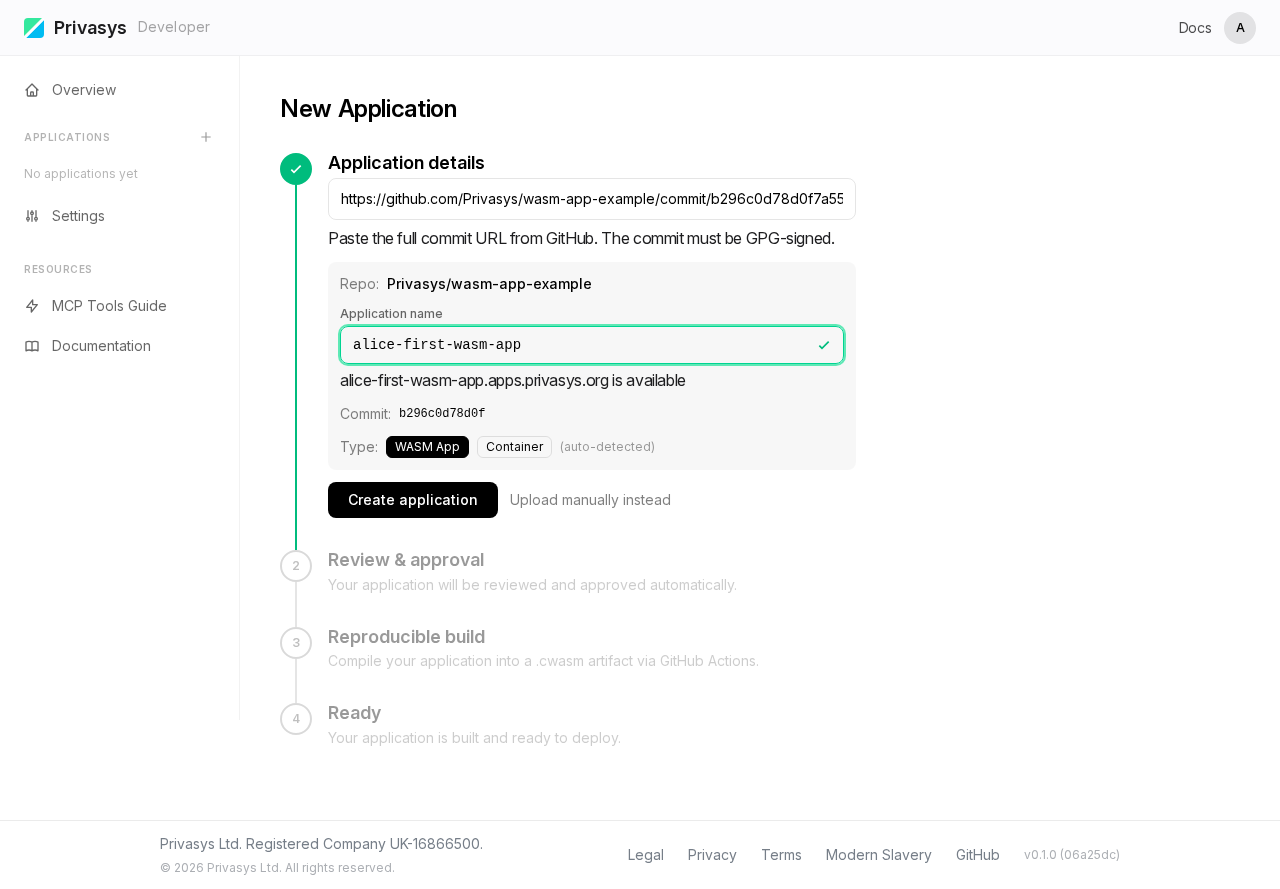
The creation form appears. For this tutorial, please use the GitHub commit URL from the wasm-app-example repository:
https://github.com/Privasys/wasm-app-example/commit/b296c0d78d0f7a5504d76abba7e5e5b3af885936The platform parses the URL, extracts the repository and commit hash, and selects WASM as the application type.
Give it a name, here we use alice-first-wasm-app.
Step 3. Reproducible build and Overview
After clicking Create, the platform triggers a reproducible build via GitHub Actions. The build compiles your Rust source to a .cwasm binary and prints the SHA-256 hash in the workflow summary:
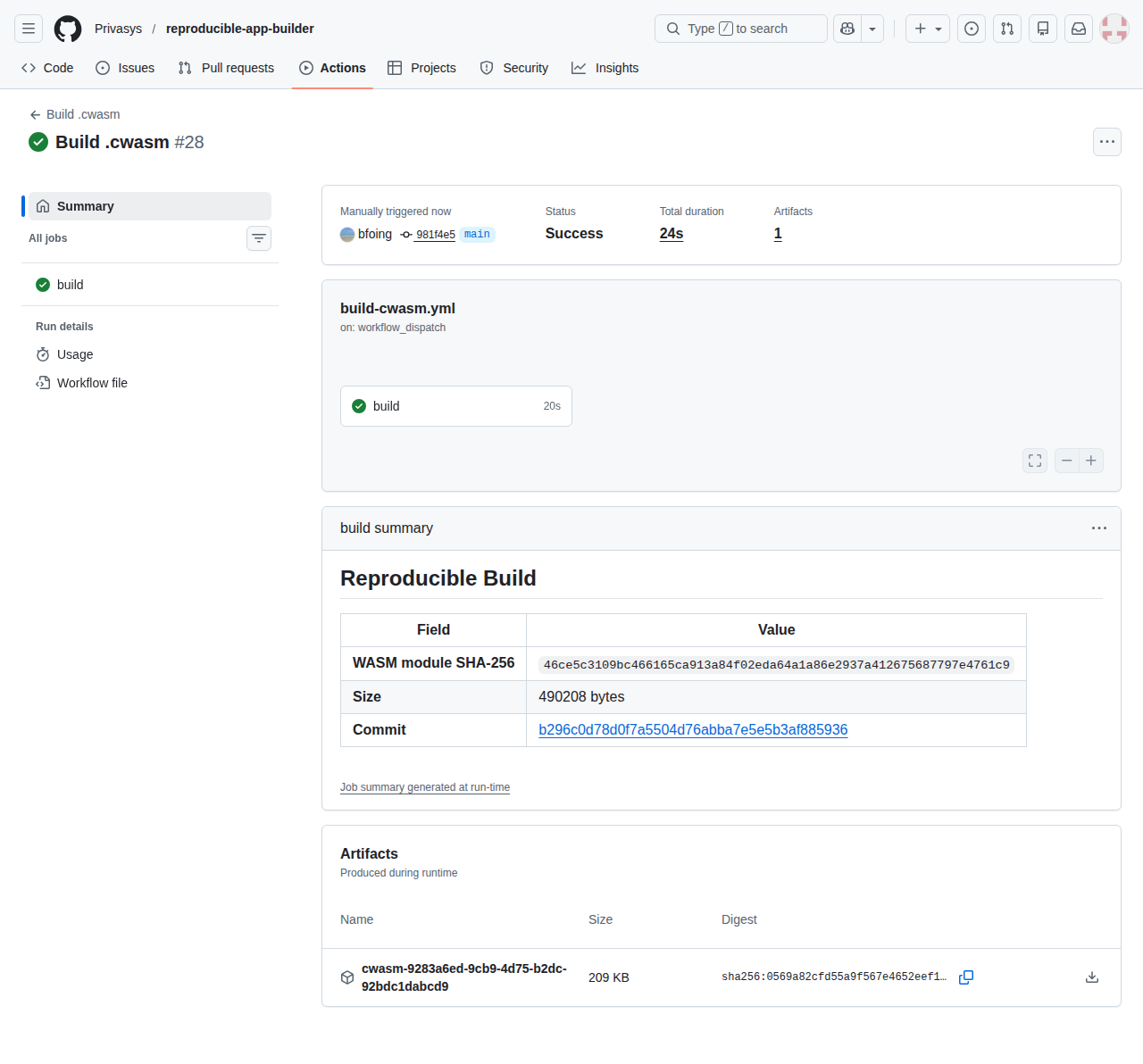
Anyone can re-run this build from the same commit and verify they get the identical SHA-256. This is the first link in the verifiable chain from source code to enclave.
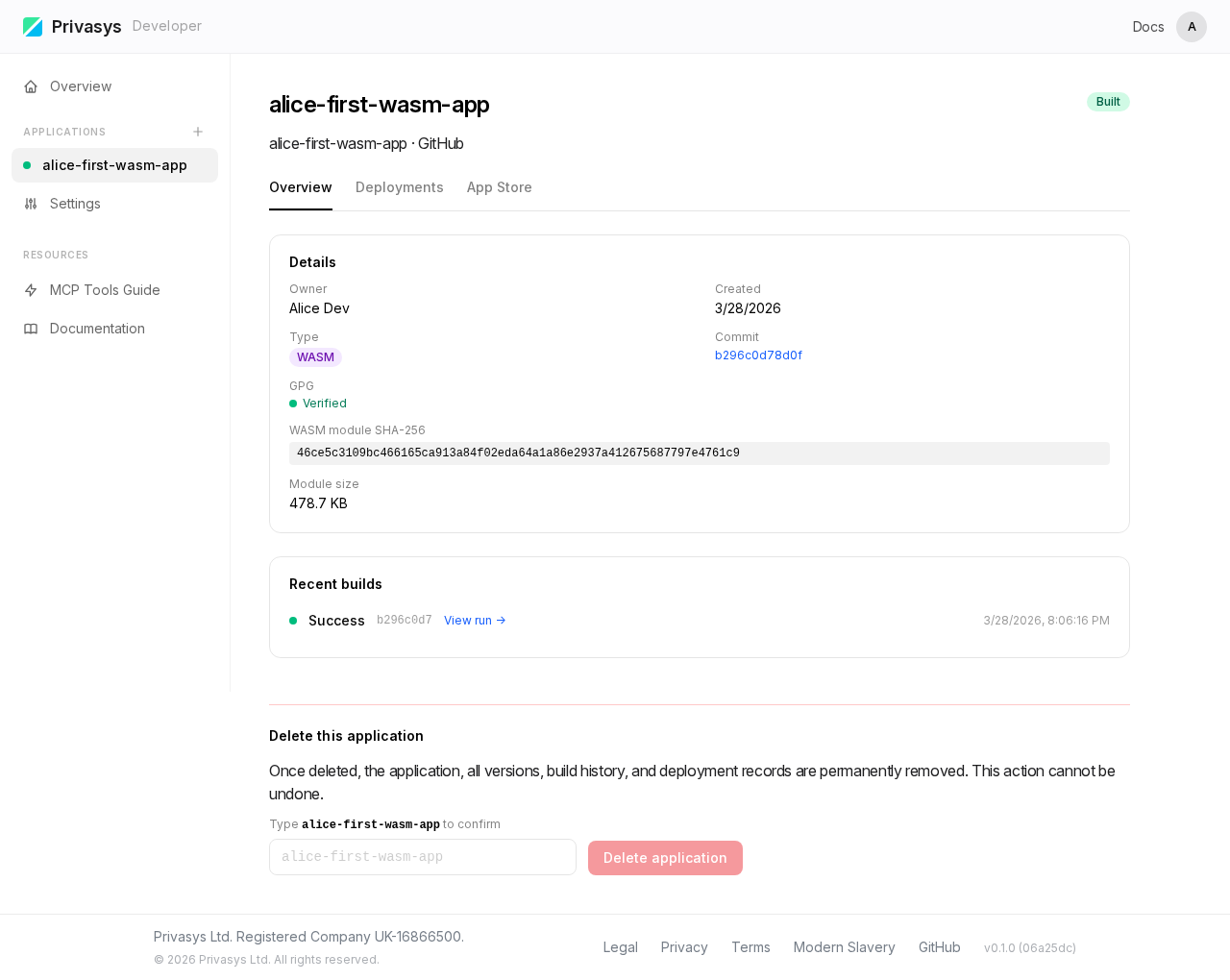
Back on the platform, the Overview tab shows the same hash:
Step 4. Deployments: select version and region
Switch to the Deployments tab. Select the version you just built and a deployment region, then click Deploy.
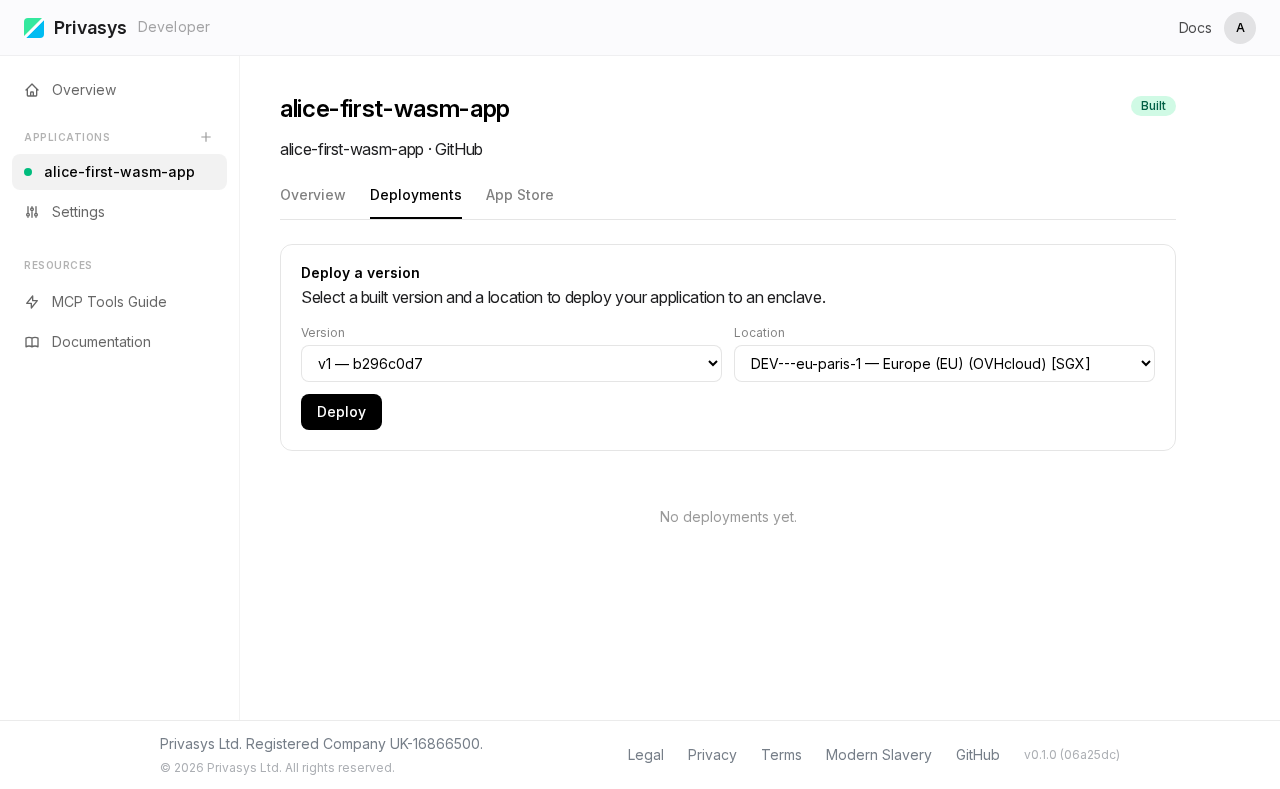
The platform delivers the .cwasm binary to an SGX enclave and starts serving it behind an RA-TLS certificate.
Step 5. Attestation: verify the enclave
Once the deployment is active, switch to the Attestation tab. Enter a challenge nonce and click Inspect Certificate to perform a live attestation check.
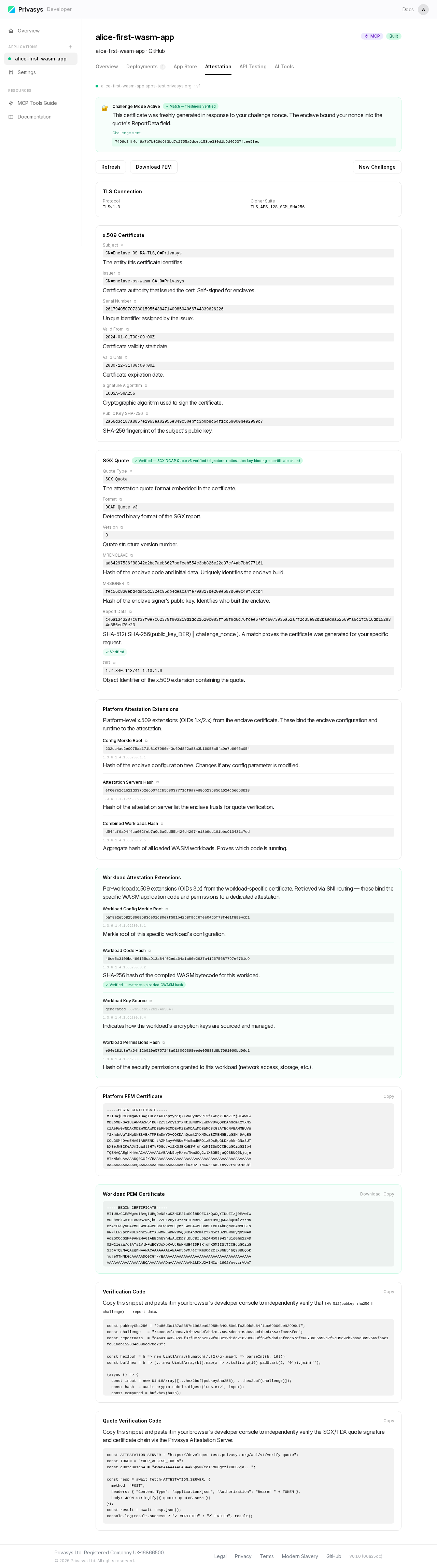
The panel shows the full TLS certificate chain, the SGX quote, and the parsed attestation extensions including the Workload Attestation Extensions where the code hash appears under OID 3.2.
SHA-256 match: the code hash in the attestation quote is the same SHA-256 from Step 3 and from the GitHub Actions build log. This proves the enclave is running the exact binary that was built from your commit, without modifications or substitutions.
Inside the enclave, Enclave OS Mini recomputes the SHA-256 of the WASM bytecode at load time and embeds it in the RA-TLS certificate:
// enclave-os-mini - crates/enclave-os-wasm/src/registry.rs
let hash = digest::digest(&digest::SHA256, wasm_bytes);
let mut code_hash = [0u8; 32];
code_hash.copy_from_slice(hash.as_ref());
This ensures the attestation OID always reflects the actual bytes loaded into the enclave. There is no separate metadata or external index.
Step 6. API Testing: call a function
Switch to the API Testing tab. Select get-random from the function dropdown and click Send.
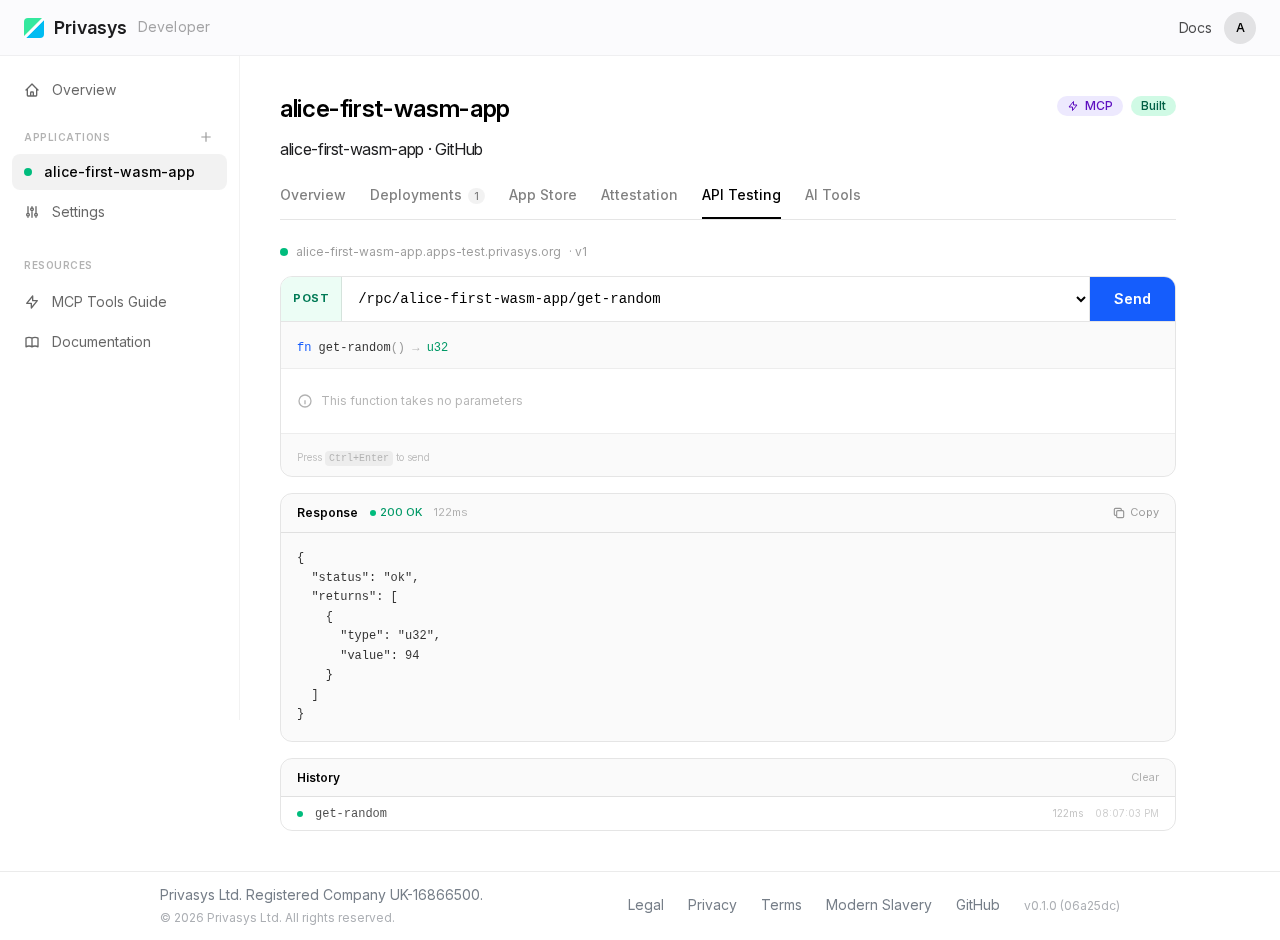
The response is returned directly from the enclave over the attested TLS channel. For WASM applications, the platform generates type-aware input controls from the WIT schema: text fields for strings, number inputs for integers, toggles for booleans.
Step 7. AI Tools: MCP tool server
Switch to the AI Tools tab. The platform automatically generated an MCP tool manifest from the WIT interface.
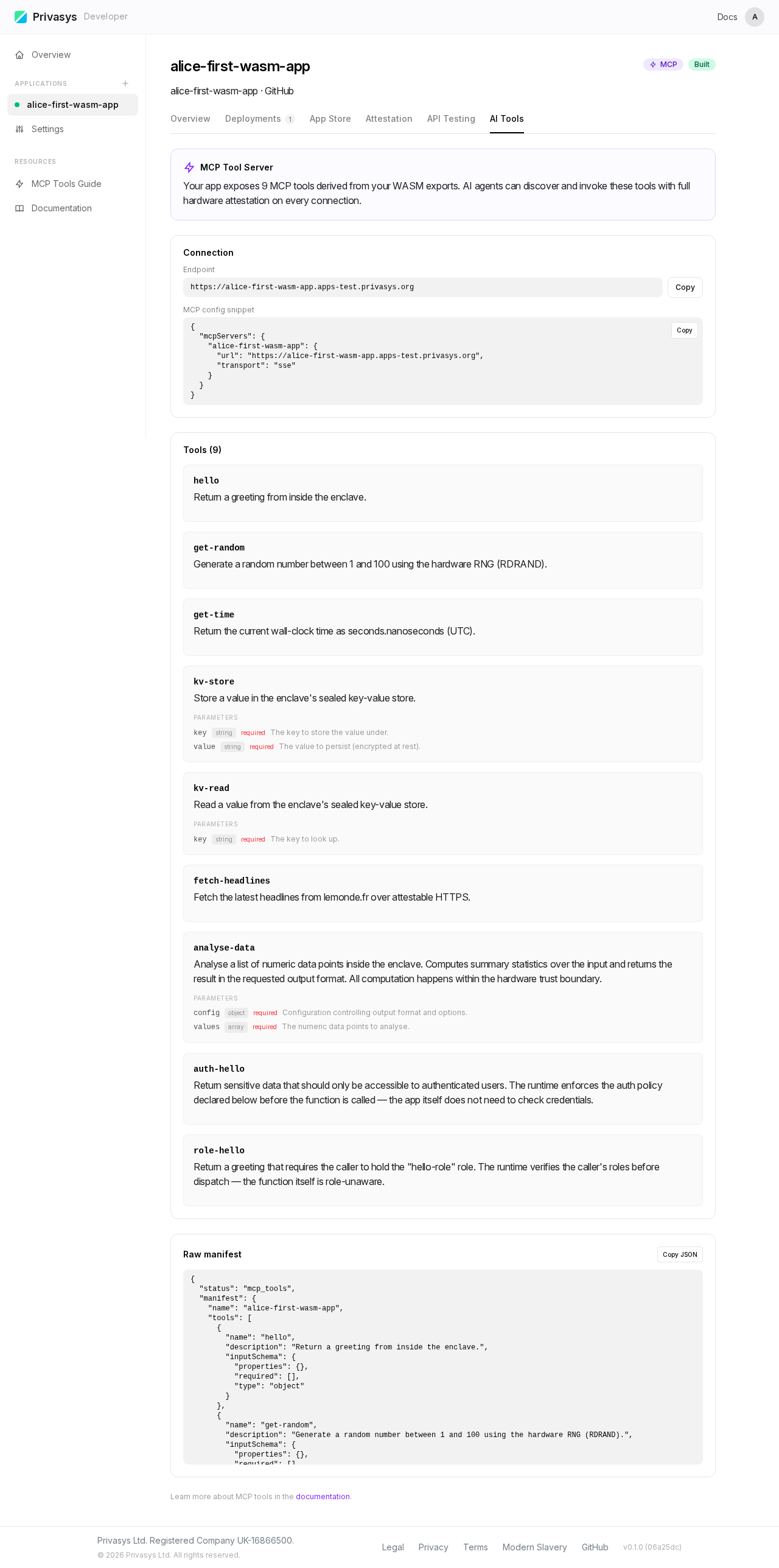
Each exported function becomes an MCP tool with its name, description (from /// doc comments in the .wit file), and parameter schema. The tab shows connection instructions for AI clients like Claude or Cursor. Every call is attested end-to-end.
Part 2: Deploy a container application
This tutorial deploys the container-app-lightpanda repository, a headless browser running inside a TDX enclave, with a single MCP tool browse declared in privasys.json.
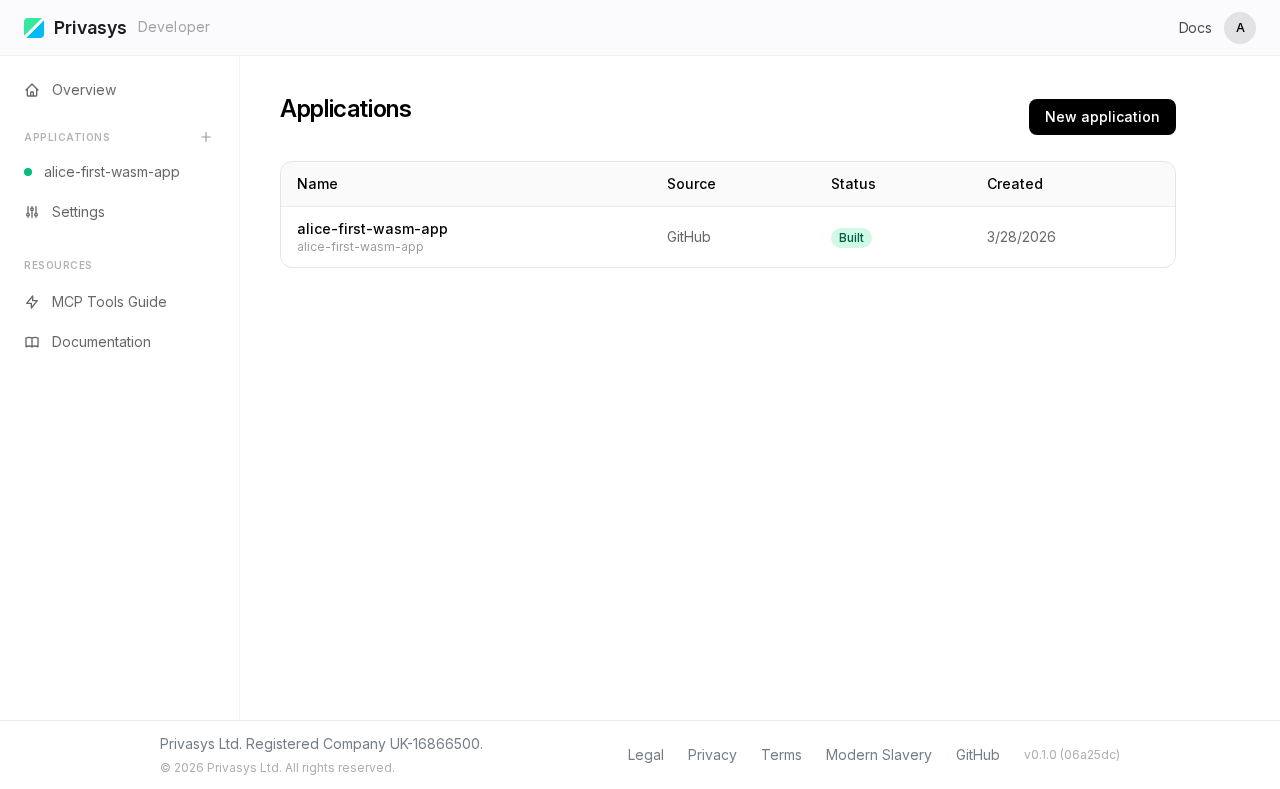
Step 1. Dashboard
The WASM app from Part 1 is still visible in the sidebar. Click New Application to begin the container flow.
Step 2. New application form
Click New Application. The same creation form appears.
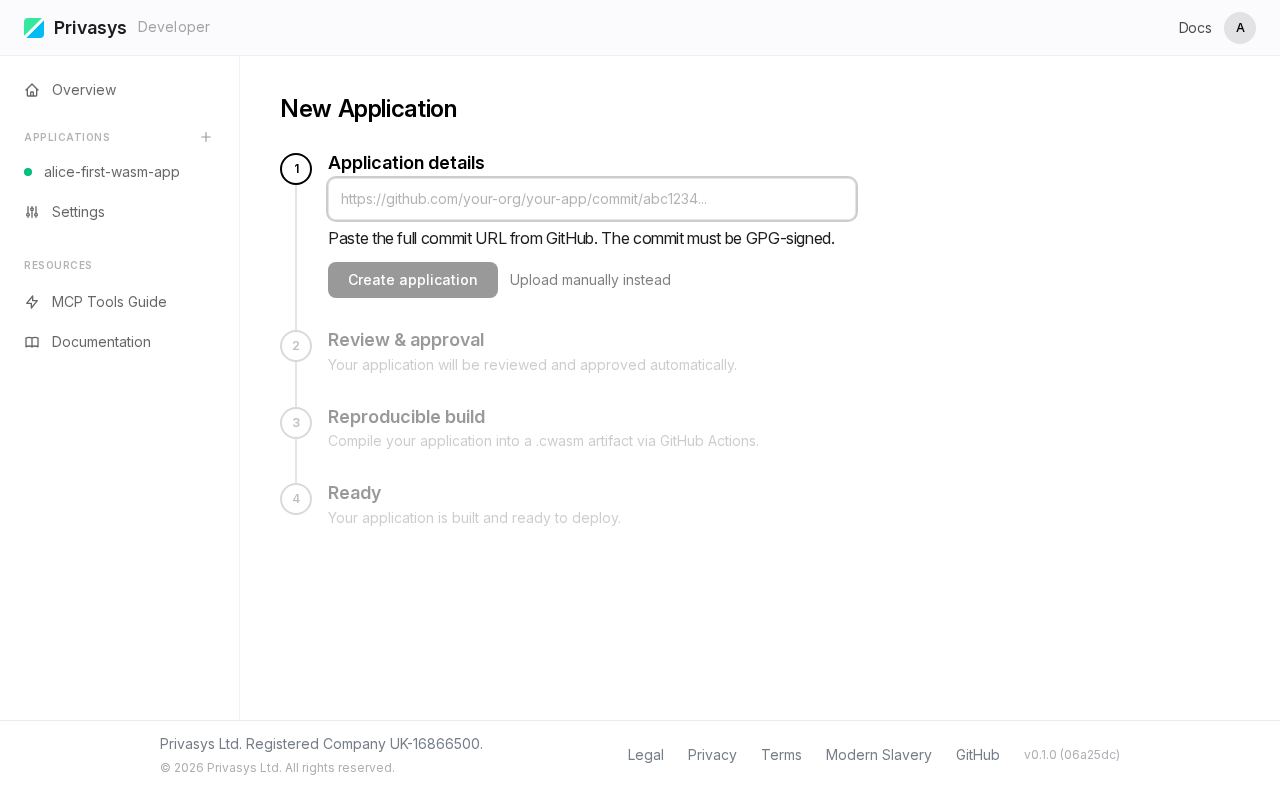
Step 3. Paste commit URL: auto-detection
Paste the commit URL from the container-app-lightpanda repository. For this tutorial we use:
https://github.com/Privasys/container-app-lightpanda/commit/9d08f6d6d16c313b8ad7fb9b6e5df763044d9b7dThe platform detects the privasys.json manifest and automatically selects Container as the application type.
Name it alice-lightpanda-app.
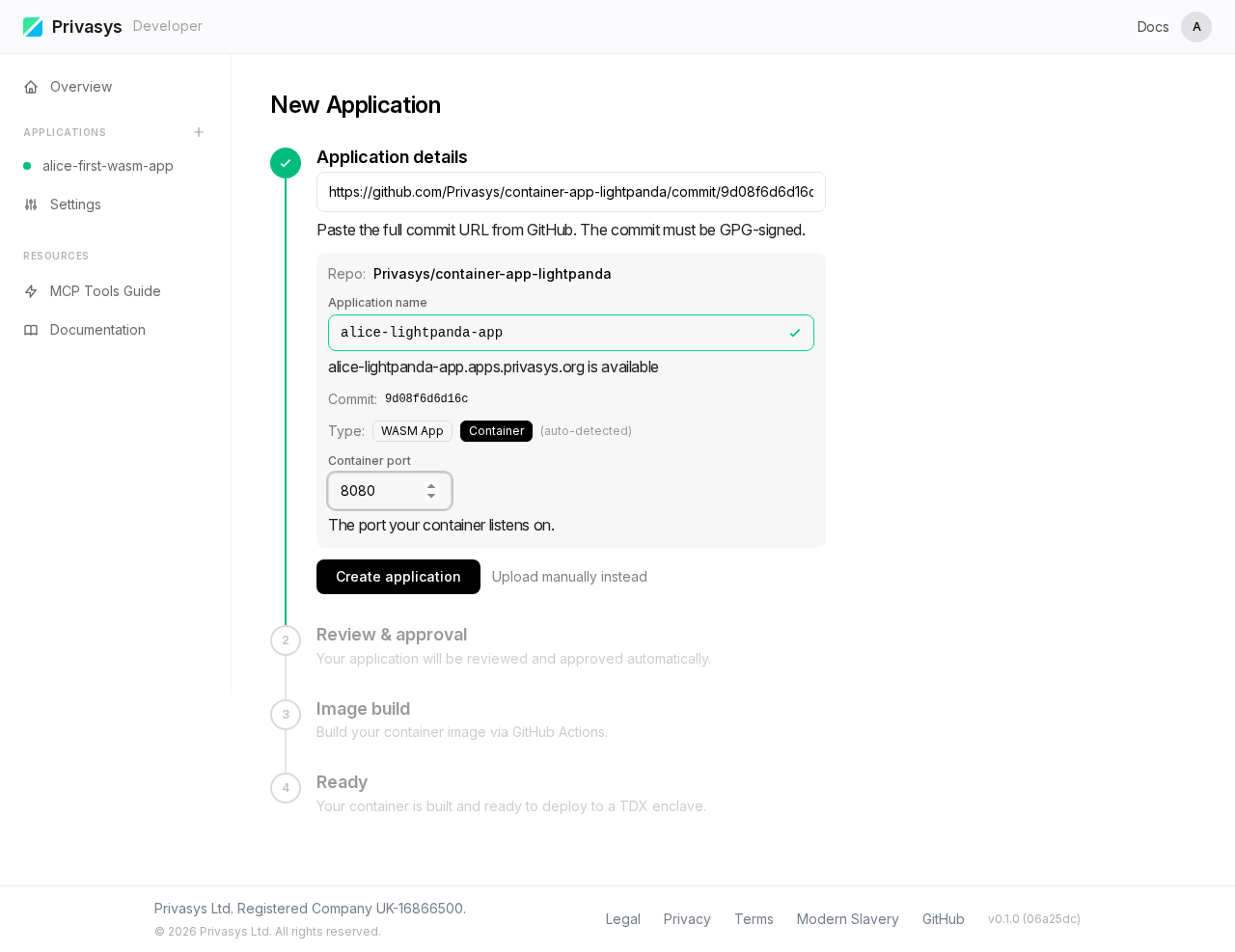
Notice the (auto-detected) label next to Container. The platform identified the type from the
privasys.jsonfile in the repository.
Reproducible build hash: just like WASM, the container image is built by the reproducible-app-builder GitHub Action. The build log prints the SHA-256 image digest, which also appears in the Attestation workload extensions.
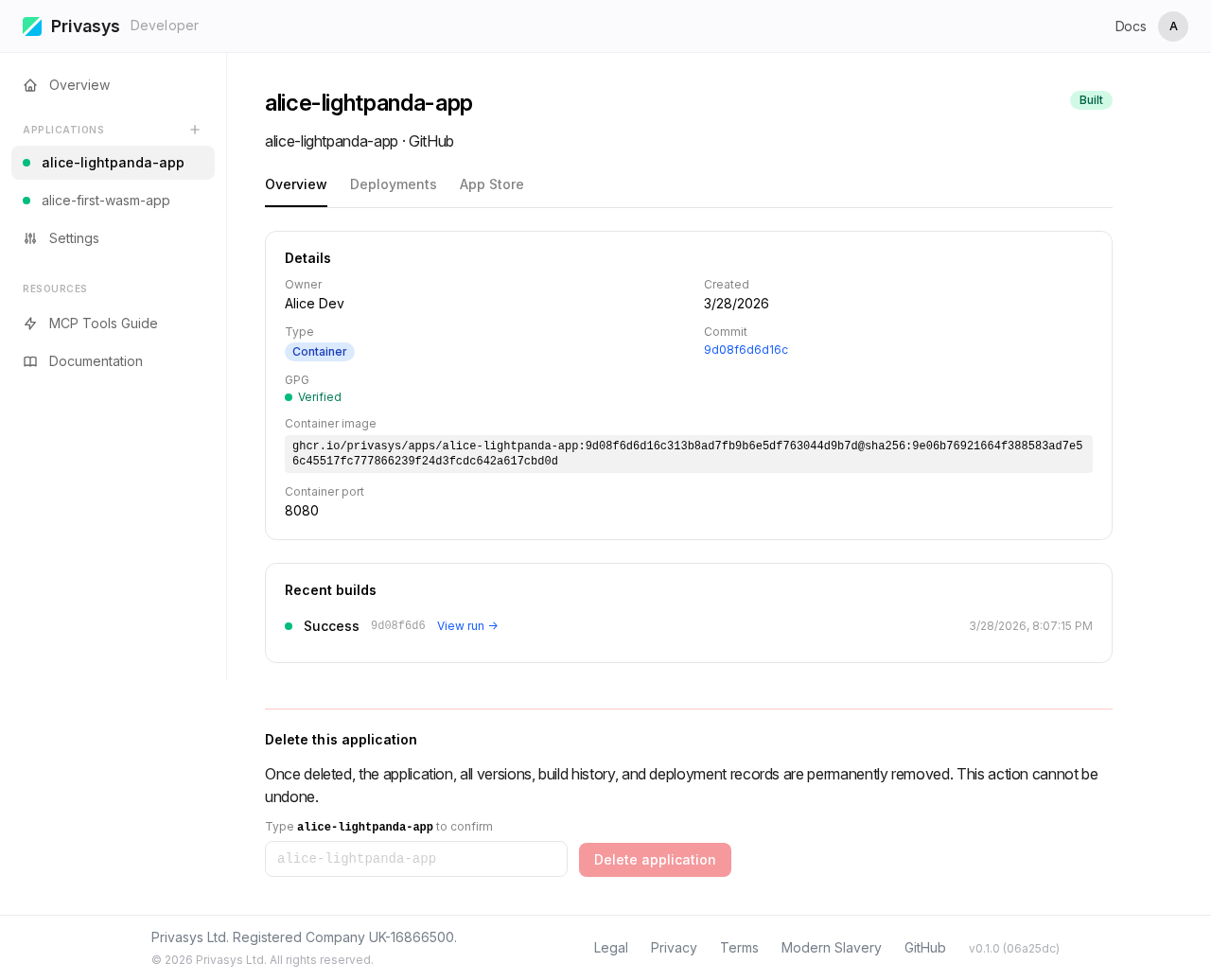
Step 4. Overview: build complete
After clicking Create, the platform builds the container image. The Overview shows the build status and application metadata.
Step 5. Deployments: select version and region
Switch to the Deployments tab. Select the version and region, then click Deploy.
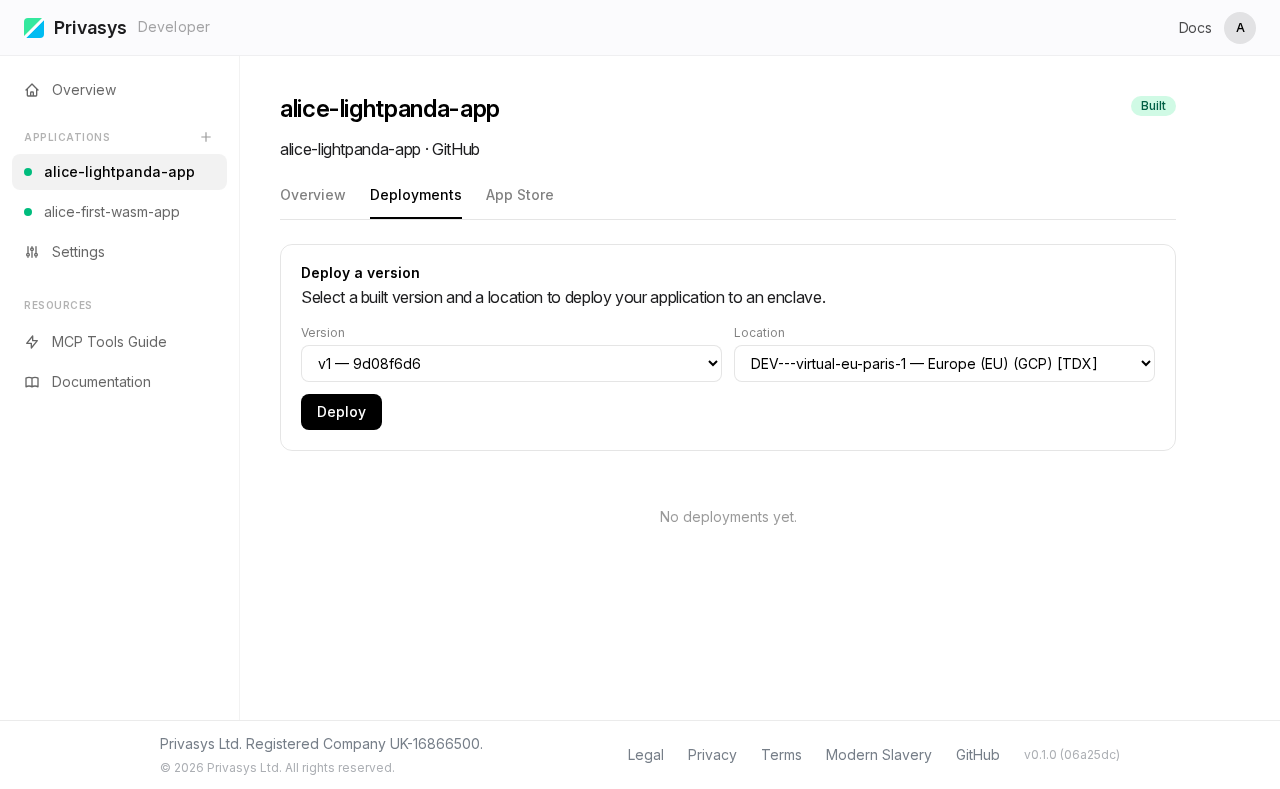
The platform deploys the container image to a TDX enclave.
Step 6. Attestation: TDX quote and measurements
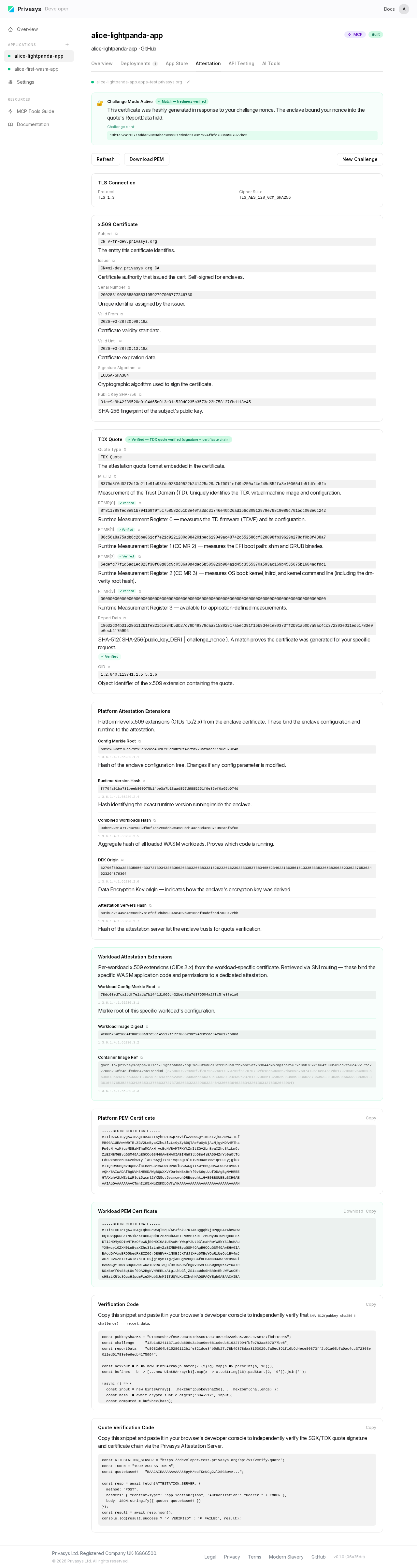
Once the deployment reaches Active status, switch to the Attestation tab and click Inspect Certificate. The platform performs a TLS handshake with the TDX enclave and extracts the attestation data.
The attestation includes a TDX quote with RTMR (Runtime Measurement Register) values that cover the full boot chain, from firmware through the OS to the container layer.
Scroll down to the Workload Attestation Extensions, which contain the container-specific measurements including the workload image digest. This digest matches the SHA-256 from the GitHub Actions build log:
Step 7. API Testing: browse tool
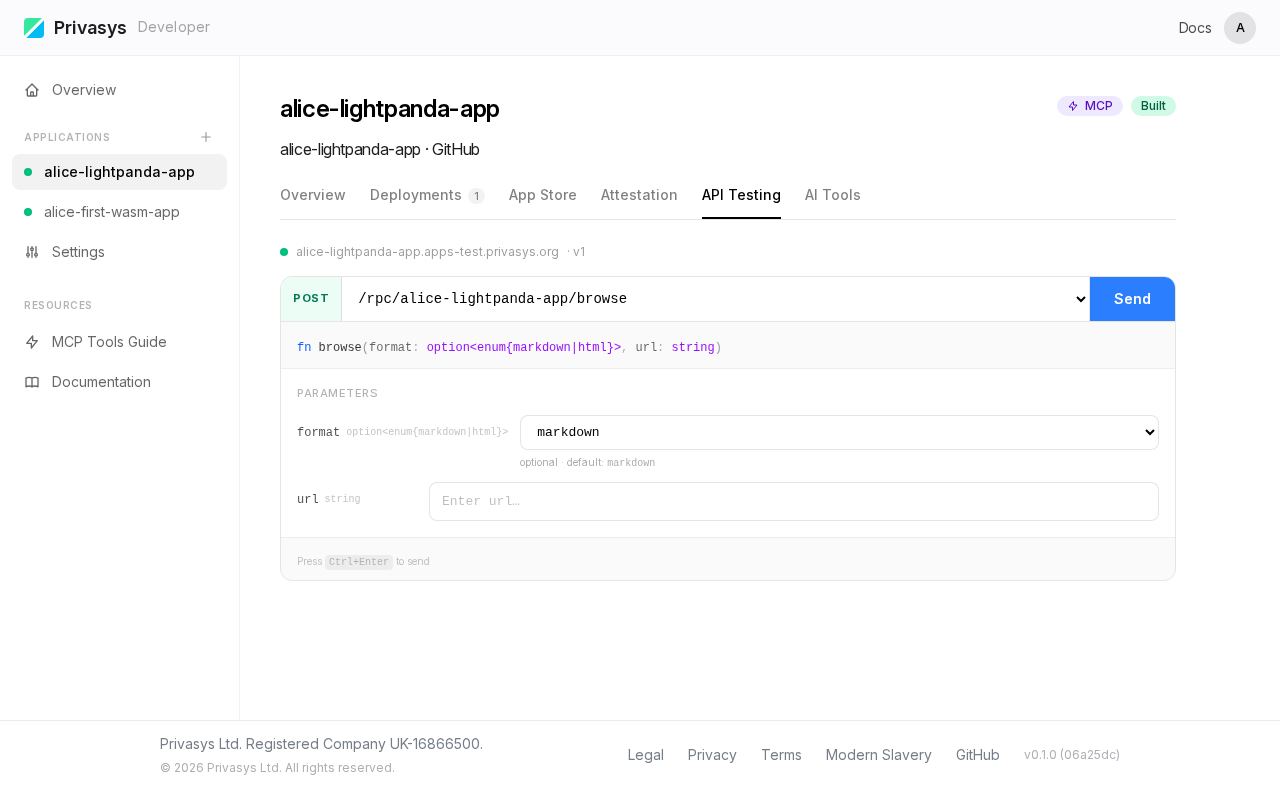
The API Testing tab shows input fields generated from the privasys.json JSON Schema. For this LightPanda container, there is a single browse tool that accepts a URL.
Step 8. AI Tools (MCP)
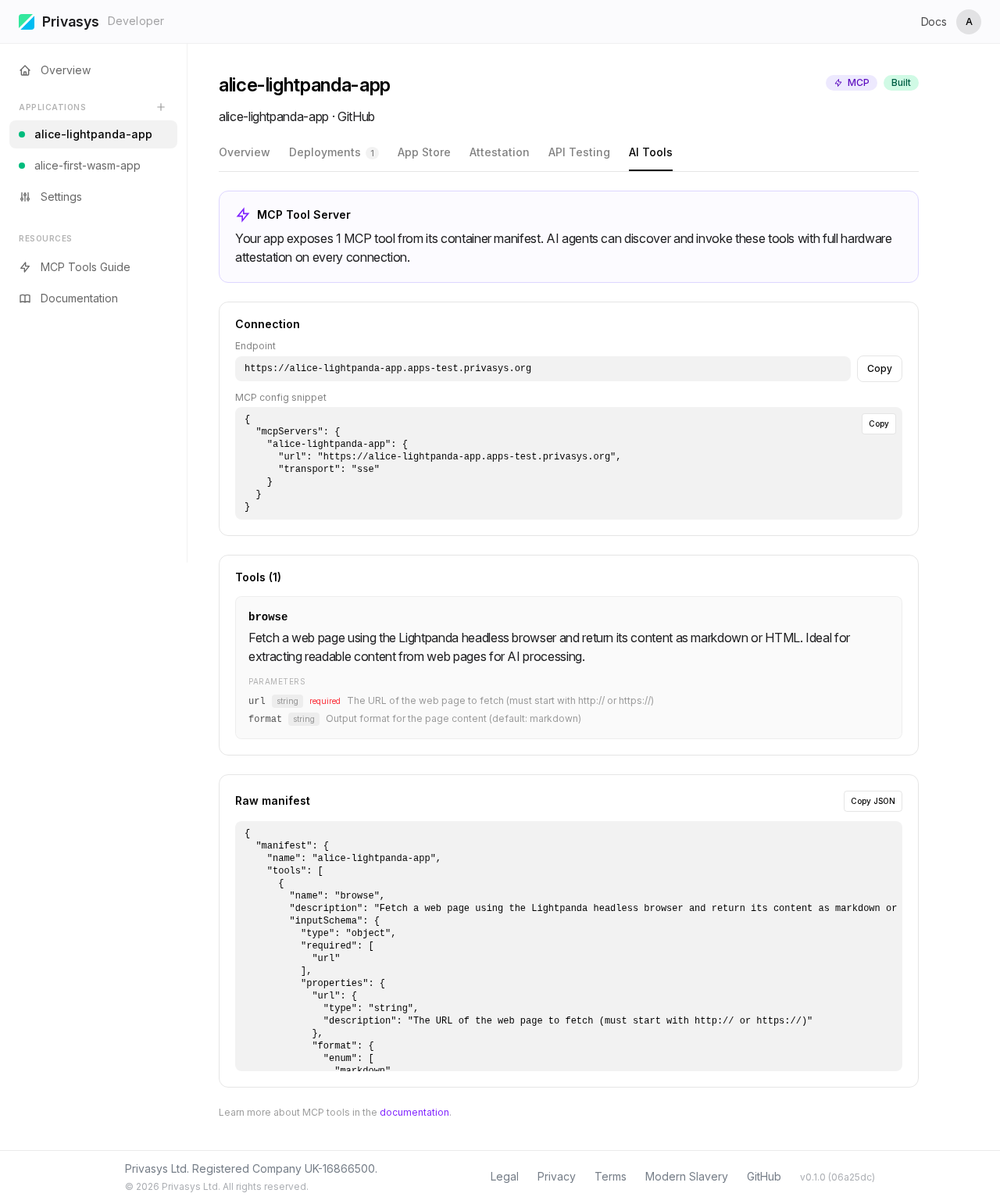
The AI Tools tab displays the MCP tool manifest with connection instructions. Tools are declared in privasys.json instead of derived from WIT.
What happens under the hood
When you deploy an application through this workflow:
- Build: the platform compiles your WASM module via reproducible GitHub Actions, or builds your container image from the Dockerfile.
- Deploy: the binary or image is delivered to a hardware enclave (SGX for WASM, TDX for containers) over an attested channel.
- Attest: the enclave generates RA-TLS certificates embedding a hardware-signed attestation quote.
- Route: your application receives a hostname under
*.apps.privasys.org. The gateway routes traffic without terminating TLS. - Discover: AI agents and clients discover your application's tools via MCP and verify the attestation on every connection.
WASM vs Container: quick comparison
| WASM (SGX) | Container (TDX) | |
|---|---|---|
| Source | Any language compiled to .wasm | Any language, Dockerfile |
| MCP tools | Auto-derived from .wit | Declared in privasys.json |
| Attestation | Per-app code hash (SHA-256 of .cwasm) | Full VM boot chain (RTMR registers) |
| Enclave | SGX enclave | TDX virtual machine |
| Build | Reproducible WASM compilation | Container image build |
Next steps
- Deploy a WASM module: full reference for WASM deployments
- Deploy a container: full reference for container deployments
- Attestation and verification: deep dive into the attestation model
- MCP Tools: WASM MCP tool generation reference
- Verification libraries: verify attestation from Python, Go, Rust, TypeScript, or C#